How to connect Google Search Console to a website is one of the first setup tasks every beginner should learn. Google Search Console helps you check indexing, search performance, sitemap status, and technical issues that can affect SEO. In this guide, you will learn how to add your website, choose the right property type, verify ownership, submit your sitemap, and confirm the setup is working.
What Is Google Search Console?
Google Search Console, often called GSC, is a free Google tool that helps website owners monitor how their site appears in Google Search.
It does not directly improve rankings by itself. However, it gives you useful data that can help you find indexing problems, search queries, page performance, sitemap errors, and technical SEO issues.
For beginners, GSC is important because it shows how Google sees your website. Because of this, it should be one of the first tools you connect after launching a website.
You can use Google Search Console to:
- Check if Google can index your pages
- See which keywords bring impressions and clicks
- Submit your sitemap
- Find page experience or indexing issues
- Check manual actions and security issues
- Monitor SEO performance over time
Why You Should Connect Google Search Console to Your Website
You should connect GSC to website projects early because SEO decisions are easier when you have real search data.
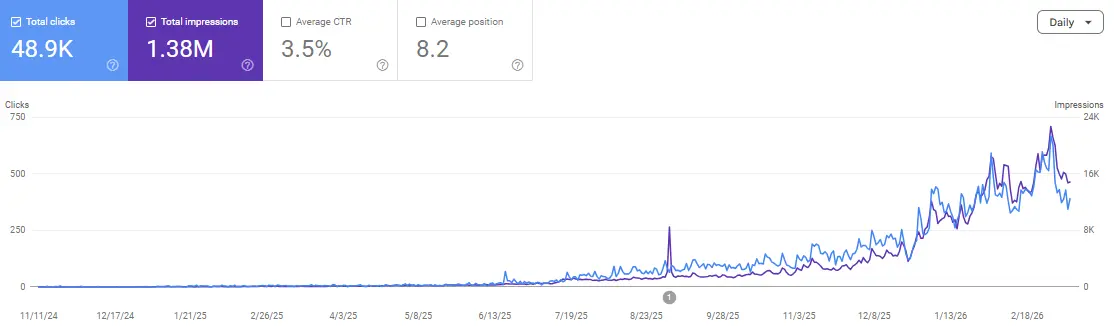
For example, Google Search Console can show which queries your pages appear for, which pages get clicks, and which pages are discovered but not indexed. As a result, you can improve content based on actual performance instead of guessing.
Google Search Console setup also helps you catch problems faster. If important pages are not indexed, your sitemap has errors, or Google finds a security issue, GSC can help you notice it.
In addition, Search Console is useful for keyword research. You can use query data to find content opportunities, update old articles, and support internal linking decisions.
Before You Start: What You Need
Before you verify website in Google Search Console, prepare a few things.
You will need:
- A Google account
- Access to your website admin area
- Access to your domain DNS settings, hosting account, or website theme
- Your website’s correct URL version
- Your sitemap URL
For WordPress users, your sitemap is often created by SEO plugins like Rank Math, Yoast SEO, or AIOSEO. Common sitemap URLs include:
https://example.com/sitemap_index.xmlhttps://example.com/sitemap.xml
However, check your SEO plugin settings first. Different plugins can use slightly different sitemap URLs.
How to Connect Google Search Console to a Website Step by Step
This section explains the basic GSC verification process for beginners.
Step 1: Open Google Search Console
Go to Google Search Console and sign in with your Google account.
Then click Add property. This is where you will add your website so Google can start showing data for it after verification.
If this is your first time using GSC, the tool may ask you to add a property immediately.
Step 2: Add Your Website Property
A Search Console property is the website or website section you want to track.
You will usually see two options:
- Domain property
- URL prefix property
Choose carefully because this affects what data is included in your reports.
Choose Domain Property or URL Prefix Property
This is where many beginners get confused.
A Domain property tracks your whole domain across protocols and subdomains. For example, it can include versions like:
http://example.comhttps://example.comhttps://www.example.comhttps://blog.example.com
A URL prefix property tracks only the exact URL prefix you enter. For example, if you add https://example.com/, it will not automatically include http://example.com/ or https://www.example.com/.
Use this quick decision table:
| Property type | Best for | Beginner note |
|---|---|---|
| Domain property | Tracking the full domain | Best long-term option, but needs DNS verification |
| URL prefix property | Tracking one exact website version | Easier for some WordPress users |
| Both | Extra control and reporting | Useful if you want complete coverage |
For most site owners, Domain property is the better long-term choice. However, URL prefix property can be easier if you only manage one exact version of a site.
Verify Website in Google Search Console
After adding your property, you need to prove that you own or manage the website.
This process is called GSC verification. Google needs this because Search Console shows private site data and allows important actions, such as sitemap submission and indexing checks.
Common verification methods include:
Option 1: DNS TXT Record
DNS verification is usually used for Domain properties.
Google gives you a TXT record, and you add it to your domain’s DNS settings. You can usually find DNS settings inside your domain registrar or hosting account.
After adding the TXT record, return to Google Search Console and click Verify.
This method can take time because DNS changes may not update instantly. Therefore, if verification fails, wait a while and try again.
Option 2: HTML File Upload
HTML file verification gives you a file to upload to your website.
This method is useful if you have access to your hosting file manager or FTP. After uploading the file, you return to GSC and verify ownership.
Do not delete the file after verification. Google may check it again later to confirm ownership.
Option 3: HTML Meta Tag
The HTML meta tag method gives you a small tag to add to your website’s homepage.
For WordPress users, this can often be added through an SEO plugin, theme settings, or Google Site Kit. After adding the tag, save your changes and click Verify in Search Console.
Again, do not remove the tag after setup. If it disappears, your ownership verification may fail later.
Option 4: Google Analytics or Google Tag Manager
Some websites can verify using Google Analytics or Google Tag Manager.
This method only works if the account and tracking setup meet Google’s requirements. Therefore, if it does not work, use DNS, HTML file, or meta tag verification instead.
Submit Sitemap to Google Search Console
After verification, the next step is to submit sitemap to Google Search Console.
A sitemap helps Google discover important pages on your website. It is not a ranking shortcut, but it can help Google understand which URLs you want crawled.
To submit your sitemap:
- Open your verified property in Google Search Console.
- Go to Sitemaps.
- Enter your sitemap URL.
- Click Submit.
- Check the status after Google processes it.
For example, if your sitemap URL is:
https://example.com/sitemap_index.xml
You may only need to enter:
sitemap_index.xml
If your sitemap shows an error, check whether the URL opens correctly in your browser. In addition, confirm that your SEO plugin has sitemap settings turned on.
How to Connect Google Search Console to a Website and Check If It Works
After setup, do not stop at verification.
You should check whether Google Search Console is collecting data and whether your pages can be indexed.
Start with these checks:
- Open the Pages or indexing report.
- Use the URL inspection tool for your homepage.
- Check whether your sitemap status says success.
- Look for crawl or indexing errors.
- Review the Performance report after data appears.
Search Console data may not appear immediately. Because of this, wait a few days if your website is new or if you just verified the property.
If your site is already live and indexed, you may see data sooner. However, new websites often need more time.
Common Google Search Console Setup Mistakes
Beginners often make small mistakes during Google Search Console setup.
Avoid these issues:
- Adding the wrong website version
- Using
httpinstead ofhttps - Forgetting the
wwwor non-www version - Choosing URL prefix when Domain property is needed
- Removing the DNS record, HTML file, or meta tag after verification
- Submitting the wrong sitemap URL
- Expecting data to appear instantly
- Thinking GSC guarantees rankings
- Ignoring indexing errors after setup
- Not checking the Performance report later
One important reminder: Search Console helps you monitor SEO, but it does not force Google to rank your pages. You still need useful content, crawlable pages, strong internal links, and a clear site structure.
For related guides, link this section to [what is internal linking] and [what is content cannibalization].
What Should You Do Next?
After you connect Google Search Console to a website, use the data to improve your SEO step by step.
Start with this simple workflow:
- Check if your homepage is indexed.
- Submit your sitemap.
- Inspect important URLs.
- Review indexing issues.
- Check your top queries and pages.
- Find pages with impressions but low clicks.
- Improve titles, intros, and content where needed.
- Add internal links to important pages.
For example, if an article gets impressions for a keyword but few clicks, improve the title and meta description. Meanwhile, if a page is discovered but not indexed, review content quality, internal links, and crawlability.
FAQs
How do I connect Google Search Console to a website?
To connect Google Search Console to a website, add your site as a property, choose Domain or URL prefix, verify ownership, submit your sitemap, and check indexing reports.
Which is better, Domain property or URL prefix property?
Domain property is usually better if you want to track the full domain, including subdomains and different URL versions. URL prefix property is useful when you only want to track one exact site version.
How do I verify website in Google Search Console?
You can verify website in Google Search Console using DNS TXT record, HTML file upload, HTML meta tag, Google Analytics, or Google Tag Manager. The available methods depend on your property type and site setup.
Do I need to submit a sitemap to Google Search Console?
Submitting a sitemap is recommended, especially for larger sites, new sites, or sites with many pages. It helps Google discover important URLs, but it does not guarantee rankings.
How long does Google Search Console take to show data?
Google Search Console data may take a few days to appear, especially for new websites. If your site is already indexed, some reports may populate faster.
Does Google Search Console improve rankings?
No. Google Search Console does not directly improve rankings. However, it helps you find indexing issues, monitor search performance, and make better SEO decisions.
Conclusion
How to connect Google Search Console to a website is a basic but important SEO setup task.
Once connected, GSC helps you verify ownership, submit your sitemap, check indexing, monitor performance, and find technical issues. However, the tool works best when you use the data regularly, not only during setup.
For beginners, start simple: add the right property, complete GSC verification, submit your sitemap, and check your most important pages. Then use Search Console data to improve your content, internal links, and keyword research strategy over time.
Want to improve your Google Search Console setup and SEO workflow with other beginner and semi-intermediate practitioners? Join the Scale Xpert community here.