Google Search Console is a free tool from Google. It shows you exactly how Google crawls, indexes, and ranks your website. Specifically, it tracks which queries bring users to your site and highlights indexed pages. It also points out crawling errors and shows which sites link to your domain. Furthermore, since June 2026, it monitors how your content performs inside AI Overviews and AI Mode. If you own a website but ignore Search Console, you are flying blind. You are essentially making crucial SEO decisions without your most important data source.
This guide covers the platform’s core definition, every significant feature, and step-by-step setup methods. Additionally, you will discover how to use it effectively for both traditional SEO and the evolving 2026 AI search landscape.
Scale Xpert is a community where SEOs learn from each other and exchange backlinks. If you are getting started with Search Console and want help interpreting your data, join us on Discord and ask the community directly.
What Is Google Search Console?
Google Search Console (GSC) serves as Google’s official platform for website owners. It allows webmasters and SEO practitioners to monitor, analyze, and manage their site’s search visibility. Originally, Google launched this service as Google Webmaster Tools before rebranding it in 2015.
Think of GSC as your direct communication hotline to the search engine. For instance, Google uses this dashboard to send manual action notifications. Consequently, this is where you submit sitemaps, request page recrawls, and analyze actual organic performance data. No third-party tool has direct access to this internal data. Instead, it comes straight from Google’s proprietary systems.
Fortunately, the platform is entirely free. Google does not offer a paid or premium tier. Therefore, every single feature described in this guide is fully available to any verified site owner. You can access the interface directly at search.google.com/search-console.
Google states that Search Console helps you see your site exactly how the search engine sees it. That description is remarkably accurate. Every report focuses on Google’s specific perspective rather than what users see on the front end.
Who Needs Google Search Console?
Google Search Console provides essential insights for anyone managing a website’s search visibility. For example, business owners use it to track their organic traffic footprint. Content creators and bloggers rely on it to find out which specific articles attract the most readers.
Simultaneously, SEO professionals depend on the platform for technical crawl data and keyword insights. Web developers use the interface to debug broken scripts or test structured data formatting. Meanwhile, marketing teams leverage it to evaluate the ultimate success of their digital content strategy.
Even Google’s official documentation highlights this broad utility. The guidelines state that Search Console is built “for site owners, webmasters, SEOs, web developers, and digital marketers.” The engineering team explicitly designed these features to support all of these professional roles inside one single dashboard.
How to Set Up Google Search Console
Setting up Search Console requires verified ownership of your website. This strict security step prevents unauthorized users from accessing your private performance data.
To begin, visit search.google.com/search-console and log in with your primary Google account. Next, click Add Property and select your preferred tracking type. You can choose between two property styles: Domain properties or URL prefix properties.
Domain properties monitor all subdomains, protocols, and root paths. However, they require you to modify your DNS records for verification. On the other hand, URL prefix properties only track a specific folder path or protocol. Because they offer multiple simple verification methods, most beginners prefer them.
For a URL prefix property, you can choose from several quick methods. The most common choice is an HTML file upload, where you upload a verification file directly to your server. Alternatively, you can add an HTML meta tag to your homepage header. You can also verify via a connected Google Analytics account or Google Tag Manager container. Simply select the technical method that best matches your setup.
After successful verification, Google usually takes 24 to 48 hours to display your initial metrics. The system safely stores up to 16 months of historical performance data. However, remember that data only begins accumulating after your verification date.
The Core Features of Google Search Console
Performance Report
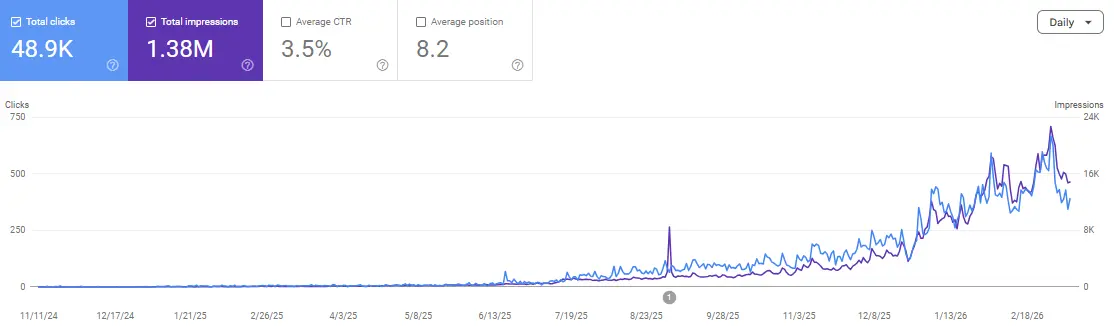
The Performance Report is the absolute heartbeat of Search Console. SEO specialists use this section daily to track search trends. It highlights your organic performance across a chosen date range using four cornerstone metrics: total clicks, total impressions, average CTR, and average position.
Clicks represent the exact number of times a user selected your link in search results. Meanwhile, impressions track how often your URL appeared to searchers, even if they did not click. Average CTR measures clicks divided by impressions, shown as a percentage. Finally, average position reveals your average numerical rank across all queries that triggered an impression.
You can easily segment this data using four distinct dimensions:
-
Queries: This tab reveals the exact search terms driving traffic to your pages. It provides real keyword data that third-party platforms can only estimate.
-
Pages: This view shows exactly which URLs appear most frequently in search engine results pages.
-
Countries: This breakdown maps your organic visibility geographically.
-
Devices: This filter splits your metrics across desktop, mobile, and tablet users.
Combining the Queries and Pages dimensions provides massive SEO power. For example, if you filter by a specific URL, you can instantly see every exact keyword that brings impressions to that page.
Generative AI Performance Report
Google introduced the Generative AI Performance Report in June 2026. This feature tracks how your content performs inside AI Overviews and AI Mode. Currently, it monitors impressions across your pages, target countries, and device types, though it does not provide click tracking yet.
This update represents Google’s first official measurement tool for the modern AI search ecosystem. If you want to maximize this feature, check out how How SEO AI Tools Can Transform Your Website Growth to better align your content strategy.
By comparing your AI metrics against traditional organic data, you can spot where your visibility diverges. Consequently, this helps you identify unique content optimization opportunities. For a deeper breakdown of this dynamic environment, see how How Generative Engine Optimization Can Transform Your Traffic.
URL Inspection Tool
The URL Inspection Tool shows you exactly how Googlebot views a specific page. Simply paste any URL into the top search bar. The system will instantly report its indexation status, its last crawl timestamp, and Google’s chosen canonical URL.
Furthermore, the Test Live URL feature provides incredible value for troubleshooting technical errors. It actively fetches the current live page from your server. As a result, it displays what Googlebot sees right now rather than relying on an outdated cached record.
Additionally, you can use the Request Indexing button to push your URL into Google’s priority crawl queue. While this action does not guarantee immediate placement, it significantly accelerates the indexing process for new or updated articles.
Index Coverage Report
The Index Coverage report tracks the technical health of every URL Google has discovered on your site. The system organizes your pages into four distinct categories:
-
Error: Pages that Google tried to crawl but failed to process.
-
Valid with Warning: Pages that Google successfully indexed despite minor underlying issues.
-
Valid: Healthy pages that are fully indexed and ready to rank.
-
Excluded: Pages omitted from the index intentionally, such as redirected links or pages with a noindex tag.
You must prioritize the Error category during your weekly technical audits. Common culprits include broken 404 pages, server timeouts (5xx errors), and confusing redirect loops. You might also encounter Soft 404 errors, which happen when a server returns a successful status code for a completely empty page.
Clicking on a specific error type opens a detailed diagnostic window. This panel displays the exact URLs affected, their last crawl date, and the specific user agent that spotted the bug. This level of detail allows you to fix high-impact issues first.
Sitemaps
The Sitemaps section lets you submit XML sitemaps to Google’s indexing system. A sitemap acts as a clear roadmap, listing all essential URLs along with their last modified dates. This document helps Google discover your content much faster.
After submission, Search Console displays a comparison between your submitted URLs and your successfully indexed pages. A massive gap between these two numbers indicates a deeper technical issue that requires immediate investigation via the Coverage report.
Fortunately, most modern content management systems generate and update these files automatically. Therefore, you primarily use this dashboard tab to confirm that Google has accepted your data stream without processing failures.
Manual Actions
The Manual Actions report is a critical compliance panel, though you should ideally want it to remain completely empty. Human reviewers at Google issue these penalties when a website explicitly violates their webmaster guidelines.
Several common issues trigger these severe penalties:
-
Unnatural inbound link schemes.
-
Thin or entirely scraped content.
-
Aggressive cloaking tactics.
-
Manipulative structured data markup.
A manual action will rapidly tank your organic visibility, occasionally removing your entire domain from search results. To resolve this disaster, you must fix the violation and submit a formal reconsideration request through Search Console. Human reviewers will then evaluate your cleanup efforts before lifting the penalty. For this reason, checking this tab monthly is a smart defensive habit.
Links Report
The Links report displays your site’s structural connections as seen through Google’s web crawler. The external links dashboard highlights your top linking domains, your most frequently linked pages, and the most common anchor text variations.
Because this data pulls directly from Google’s active index, it provides a unique perspective compared to third-party tools. Some backlinks show up here while staying hidden from commercial databases. If you want to maximize this authoritative data, read our Friendly Guide to Effective Link Building Tools for SEOs.
Monitoring these metrics helps you verify your natural digital growth. To understand how these discoveries influence your brand authority, explore What Is Backlinking and Why It Matters for Your Rankings.
Security Issues
The Security Issues section sounds an alarm if Google discovers malicious activity on your domain. For instance, it flags hacked source code, malware injections, and deceptive phishing pages.
If a security threat triggers an alert, Google will often display an aggressive red warning page to searchers. This warning can completely decimate your organic traffic. Therefore, you must clear the infected files immediately and request an official security review to restore user trust.
Core Web Vitals
The Core Web Vitals report grades your web pages based on real-world user experience metrics. It tracks three core pillars: Largest Contentful Paint (LCP) for loading speed, Cumulative Layout Shift (CLS) for visual stability, and Interaction to Next Paint (INP) for interaction responsiveness.
The dashboard groups your URLs into three clear performance tiers: Good, Needs Improvement, and Poor. Improving these scores offers double benefits. First, it directly satisfies Google’s Page Experience ranking signals. Second, it reduces user bounce rates by delivering a noticeably faster interface.
Enhancements and Rich Results
The Enhancements tab monitors your structured data implementations. It tracks schema markups for FAQs, products, recipes, and event details. The report highlights valid items while flagging syntax errors that block rich snippet displays in search results.
You can also utilize the standalone Rich Results Test to preview your schema code. Ensuring error-free markup increases the likelihood of earning eye-catching search enhancements, which naturally boosts your click-through rates.
How SEOs Actually Use Search Console Day to Day
Understanding features is useful, but building a consistent operational workflow is what drives real growth. Successful SEO practitioners use specific recurring routines to turn this data into actionable site improvements.
Monthly Keyword Optimization: First, open the Performance Report and set your date filter to the last 28 days. Next, sort your queries by total impressions and look for high-impression terms with low click-through rates. These pages are highly visible but fail to capture clicks. Consequently, rewriting their title tags and meta descriptions represents the highest-ROI optimization task available.
Technical Health Auditing: Every month, open the Index Coverage report to scan for newly emerging errors. A sudden spike in crawl errors usually points to a code bug introduced during a recent site update. Resolving these quickly prevents indexing drops.
AI Search Visibility Tracking: As AI platforms expand in 2026, check your Generative AI Performance Report monthly. Compare your AI impressions against traditional organic metrics to see where user behaviors differ. For a step-by-step roadmap on analyzing this landscape, see Your Ultimate Guide to Easy AI Search Engine Optimization Wins.
Backlink Maintenance: Regularly review your external links within the dashboard to spot new referring domains. Pair this data with specialized software to keep a pristine link profile. If you want to scale your site’s authority safely, learn Why Your Site Needs Smart White Hat Link Building Now.
Immediate Content Indexing: Whenever you publish a critical new article, don’t wait weeks for a natural crawl. Instead, paste the URL into the Inspection Tool and request manual indexing to accelerate its search debut.
July 2026 Updates: Social Platform Properties and Merchant Data
In early July 2026, Google rolled out three significant updates to Search Console. The most impactful is the introduction of platform properties, which allows you to connect and track your Instagram, TikTok, X (formerly Twitter), and YouTube accounts directly inside GSC. This feature gives you unprecedented visibility into how your social media and video content performs in Google Search, allowing you to track queries, impressions, and clicks leading to your social profiles.
Alongside platform properties, Google updated its Merchant Listing structured data documentation to support product category formatting and automatic sale duration scheduling, making it easier for e-commerce sites to manage temporary promotions. Furthermore, Google began testing a “Visit Site” button on sponsored search ads, creating new implications for how organic results compete for clicks. For a deeper dive into these changes and what they mean for your strategy, read more about the Google Search Console July 2026 Updates: Social Platform Properties, Merchant Data, and What They Mean for SEO.
September 2026 Update: Web Multimodal Search Reporting
On September 24, 2026, Google began rolling out web multimodal search reporting globally. According to Google Search Central, the new multimodal search type filter appears in the Search results and Generative AI performance reports and covers image-led searches through Google Lens, Circle to Search, image uploads, and Chrome’s “Search this image” feature. For an SEO check, apply the filter, review which pages and devices show impressions or clicks, and compare those patterns with regular web search before changing your visual content. Google says the metrics appear when your property receives traffic from these searches. For a closer look at what the data can and cannot tell you, see Google Search Console Now Shows Image-Led Web Traffic. What Can You Actually Learn?.
FAQs
What is Google Search Console used for?
Webmasters use Google Search Console to monitor and optimize their website’s organic search visibility. Its core functions include analyzing keyword clicks, fixing crawl errors, submitting sitemaps, tracking backlinks, and monitoring AI overview impressions.
Is Google Search Console free?
Yes, the platform is 100% free. Google does not charge any fees or gate features behind premium subscription models. Every report is fully accessible to any verified site owner.
How is Google Search Console different from Google Analytics?
Search Console monitors how the search engine interacts with your site before a user arrives. Conversely, Google Analytics tracks user behavior on your site after they click. They are perfectly complementary tools.
How long does it take for Search Console to show data after setup?
The system typically takes 24 to 48 hours to display performance metrics after verification. While it stores 16 months of historical data, it cannot retroactively pull metrics from before your verification date.
What is the difference between impressions and clicks?
An impression counts every time your link appears in a user’s search results page. A click only counts when a user actually selects your result. High impressions with low clicks signal a weak meta title.
What does a manual action mean?
A manual action represents a formal penalty issued by a human reviewer at Google for violating search guidelines. It can depress your rankings or ban your site. Fixing it requires cleanup and a reconsideration request.
How do I add another person to my account?
Navigate to Settings, click Users and Permissions, and select Add User. Enter their Gmail address and assign their access level, choosing between Owner, Full, or Restricted permissions based on your needs.
What is the new Generative AI Performance Report?
Introduced in June 2026, this report tracks your impressions inside AI Overviews and AI Mode. It helps UK and global site owners measure their visibility inside Google’s modern AI search experiences.
Conclusion
Google Search Console remains the single most important free SEO tool because its insights come straight from the source. No secondary software can replicate its precise query data, exact indexing status reports, or direct security alerts.
For serious site owners, a monthly review habit is completely mandatory. It is how you confirm your site’s structural health and discover high-priority growth opportunities. Set up your property today, study the key metric dashboards, and make data-driven decisions.
Want to analyze your Search Console dashboards alongside experienced professionals? Scale Xpert’s Discord provides the perfect community space to interpret search data, ask technical questions, and collaborate on white-hat link strategies.