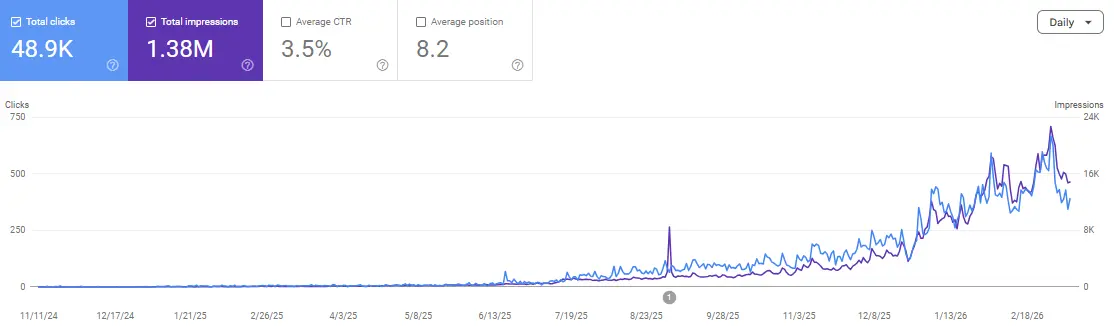
Connecting GA4 with Google Search Console unlocks one of the most powerful free combinations in SEO. Without this link, GA4 shows you that visitors came from organic search but cannot tell you which keywords they used to find you. Once connected, you can see exact search queries, impressions, clicks, and average position directly inside your GA4 reports.
Learning SEO is much faster when you can discuss what you are seeing in your data with others. Join the Scale-Xpert community on Discord where site owners share analytics insights, exchange backlinks, and help each other grow.
What You Get When You Connect GA4 and Search Console
This integration gives you a direct bridge between your website’s search performance data and your on-site behavior data. Instead of switching between two separate platforms, you can view both sets of information inside GA4 in a unified report.
The Search Console collection in GA4
Once linked, a new Search Console section appears inside your GA4 Reports under the Acquisition category. It contains two dedicated reports: the Queries report and the Google organic search traffic report. These reports pull data directly from your Search Console property and display it alongside your GA4 session and engagement data.
What the Queries report shows
The Queries report lists the actual search terms people typed into Google before clicking through to your website. For each query, you can see the number of clicks, impressions, click-through rate, and average position in Google’s search results. This data is invaluable for understanding what keywords in SEO are already driving real traffic to your site so you can create more content around those themes.
What the organic search traffic report shows
The Google organic search traffic report shows you which pages on your site receive organic clicks, along with their impressions, CTR, and position data. This makes it easy to identify pages that rank well but have a low CTR, which are strong candidates for title tag and meta description improvements.
Requirements Before You Start
Before linking the two tools, you need to confirm that a few conditions are already in place. Missing any of these will prevent the integration from working correctly.
You need admin access to both properties
You must have Editor or Administrator access to the GA4 property and Owner or Full User access to the Search Console property. If you manage your own website, you almost certainly have both. If you are working on a client’s site, ask the account owner to grant you the appropriate access level before proceeding.
Your website must be verified in Search Console
Search Console only works with websites that have been verified. If you have not yet set up Search Console, you need to do that first by adding your property and completing domain or HTML tag verification. If your GA4 is already installed and collecting data, adding the Google Analytics verification method in Search Console is the easiest option since GA4 can verify ownership automatically.
Both properties must cover the same website
The GA4 property and the Search Console property must both be connected to the same website. If your GA4 tracks example.com but your Search Console has only www.example.com verified, the link may not work correctly. Make sure both platforms are pointed at the same domain version and that your preferred domain is consistent across both tools. This is part of a clean GA4 setup process that prevents data fragmentation from the start.
Step-by-Step: How to Link GA4 to Search Console
The actual linking process takes about two minutes once your prerequisites are in place. Follow these steps in order.
Step 1: Open your GA4 Admin panel
Sign in to Google Analytics at analytics.google.com and navigate to the GA4 property you want to link. Click the gear icon at the bottom left of the screen to open the Admin panel.
Step 2: Find the Search Console Links option
In the Admin panel, look at the middle column labeled “Property.” Scroll down until you see “Search Console Links” and click it. This opens the Search Console linking management screen where you can view existing links or create a new one.
Step 3: Click Link and choose your Search Console property
Click the blue “Link” button in the top right corner. A side panel will open showing all Search Console properties that are associated with your Google account. Select the Search Console property that matches the website you are tracking in GA4 and click “Confirm.”
Step 4: Select your web stream
GA4 will ask you to select which data stream you want to associate with this Search Console property. Choose your web data stream, which is the one that tracks your website. Click “Next” to proceed.
Step 5: Review and submit
GA4 displays a summary of the link you are about to create showing the GA4 property name, the Search Console property, and the selected data stream. Review these details carefully to confirm everything is correct, then click “Submit.” The link is created immediately.
Step 6: Wait for data to appear
After linking, the Search Console reports inside GA4 will show data within 24 to 48 hours. GA4 does not backfill historical Search Console data, so the reports will only show information from the date of linking forward. In addition, Search Console data in GA4 is typically delayed by two to three days compared to what you see directly inside Search Console.
How to Find and Use the Search Console Reports in GA4
Once the integration is active and data has started flowing, here is where to find your new reports and how to get the most from them.
In the left sidebar of GA4, click “Reports.” Then scroll down until you see the “Search Console” collection listed below your other report groups. Click on it to expand the section and access the two reports inside.
Using the Queries report for keyword research
The Queries report is one of the most directly useful reports in all of GA4 for SEO work. Sort the query list by Impressions to see which search terms your site appears for most frequently. Then look at the CTR column. Any query with high impressions but a CTR below two percent is an opportunity to improve your title tag or meta description to attract more clicks from the same ranking position.
In addition, look for queries where your average position is between 8 and 15. These are pages sitting just outside the top five results where a targeted content improvement or additional quality backlinks could push you into a significantly higher-traffic position.
Using the Google organic search traffic report for page-level analysis
Switch to the Google organic search traffic report to view performance by landing page rather than by query. Sort by Clicks descending to see your highest-traffic organic pages. Then compare their CTR against your site average. Pages with above-average clicks but below-average CTR may benefit from better titles, while pages with above-average CTR but low clicks are ranking well for a limited number of queries and need more content or internal links to broaden their reach.
Combining Search Console data with GA4 engagement data
The real power of this integration appears when you cross-reference Search Console data with GA4 engagement metrics. A page that gets many organic clicks but has a low engagement rate suggests that users are arriving but not finding what they expected. This mismatch between the search query and your content is a clear signal to revisit your content’s relevance, structure, or depth to better match search intent.
Common Problems and How to Fix Them
The GA4 and Search Console integration is straightforward but a few issues come up regularly. Knowing how to handle them saves you time and frustration.
The Search Console collection is not appearing in GA4
If you completed the linking steps but cannot see the Search Console section in your GA4 reports, the most common cause is that you are using a Viewer or Analyst role rather than an Editor role on the GA4 property. Search Console reports in GA4 are only visible to users with Editor access or above. Ask your account administrator to upgrade your access level.
Data in the reports looks incomplete or delayed
Search Console data inside GA4 is always two to three days behind real time. In addition, GA4 applies sampling and thresholds to protect user privacy, which can cause some queries with very low click volumes to be excluded from the report entirely. If you need unsampled, complete data, access it directly inside Google Search Console rather than through GA4.
The link shows as created but data is not flowing
This can happen when the domain version in Search Console does not match the website URL in your GA4 data stream. For example, if GA4 tracks https://example.com but Search Console only has http://www.example.com verified, the systems may not align correctly. Verify that both tools use exactly the same URL format and that your Search Console property covers the https version of your domain.
How This Integration Supports Your SEO Strategy
Connecting GA4 with Search Console gives you a direct feedback loop between what users search for, what they click, and what they do after arriving. This feedback loop is the foundation of a data-driven SEO content strategy.
Identify content gaps using impression data
High impressions with zero or very few clicks usually mean your page is appearing in search results but not attracting interest. This often indicates a weak title tag, a meta description that does not communicate the article’s value, or a topic where your content needs more depth to compete with stronger results. Each of these situations is fixable once you can see the data clearly.
Track the impact of content improvements over time
When you update an article’s title tag, expand its content, or add a new section to address a common search query, you can use the Search Console report in GA4 to measure whether those changes improved your CTR or position over the following weeks. This turns content updates from guesswork into a measurable process with clear before-and-after comparison.
Use query data to build your internal linking strategy
The queries that send traffic to your pages reveal what your audience is genuinely interested in. When you see a cluster of related queries driving traffic to different pages, that is a signal to add internal links between those pages so users and search engines can discover the full depth of your coverage on that topic. Internal linking based on real query data is significantly more effective than internal linking based on assumptions alone.
Understanding all your traffic sources including organic search is covered in detail in the GA4 traffic sources guide, which helps you see how the Search Console data fits into your broader acquisition picture.
Connecting GA4 to Search Console is one setup task that pays dividends for years. If you have questions about interpreting what you see in your reports, the Scale-Xpert Discord community is a great place to ask and share what you discover.
Frequently Asked Questions
Is linking GA4 to Search Console free?
Yes, completely free. Both Google Analytics 4 and Google Search Console are free tools, and the integration between them costs nothing. You only need a Google account and editor-level access to both properties to complete the setup.
How many Search Console properties can I link to one GA4 property?
You can link one Search Console property per GA4 property. If you manage multiple websites, each GA4 property links to its own corresponding Search Console property separately. You cannot merge data from multiple Search Console properties into a single GA4 report.
Will linking them affect my existing GA4 data?
No. Linking Search Console to GA4 only adds new report sections inside GA4. It does not change, overwrite, or affect any of your existing GA4 data, reports, or configurations. Your historical data remains exactly as it was before the link was created.
Can I see keyword data for individual pages after linking?
Yes, but with some limitations. The Google organic search traffic report shows you which pages receive organic clicks. If you click on a specific page within that report, GA4 may show you the top queries associated with that page depending on your account settings and data thresholds. For the most granular page-level query data, the Search Console interface itself offers more complete filtering options.
What is the difference between viewing data in Search Console versus inside GA4?
Search Console gives you deeper, more granular search performance data with longer history up to 16 months, more filtering options, and coverage reports. GA4 gives you the ability to cross-reference that search data with on-site behavior metrics like engagement time, pages per session, and conversions. Both views are useful and serve different analytical purposes.
Why does my click data differ between Search Console and GA4?
Small discrepancies between Search Console click counts and GA4 session counts are normal and expected. Search Console counts a click every time someone clicks a search result to visit your site. GA4 counts a session, which may differ due to factors like session timeouts, cookie blocking, JavaScript errors, or users who clicked but left before the GA4 tag fired. A variance of 10 to 20 percent between the two is generally acceptable.
Can I unlink GA4 from Search Console later?
Yes. You can remove the link at any time by going to GA4 Admin, then Search Console Links, and clicking the three-dot menu next to the active link. Removing the link stops the data from flowing into GA4 but does not delete any data that was already collected. Your Search Console property and GA4 property both continue working independently after the link is removed.
Conclusion
Connecting GA4 with Google Search Console is one of the highest-value configuration steps you can take for your SEO analytics setup. It takes less than five minutes, costs nothing, and immediately enriches your GA4 reports with real keyword and page performance data that would otherwise require a paid tool to access.
In summary, the key steps are: confirm admin access to both tools, open GA4 Admin and navigate to Search Console Links, select your matching Search Console property and data stream, submit the link, and wait 24 to 48 hours for reports to populate. Once live, use the Queries report to find keyword opportunities and the organic search traffic report to identify pages that need a CTR or content improvement.
This integration works best when combined with a full understanding of what Google Analytics 4 is and how its reports are structured, so you can use both data sources together with confidence.
Join Scale-Xpert on Discord to connect with other SEO learners, exchange backlinks, and get practical feedback on what your Search Console and GA4 data is telling you.