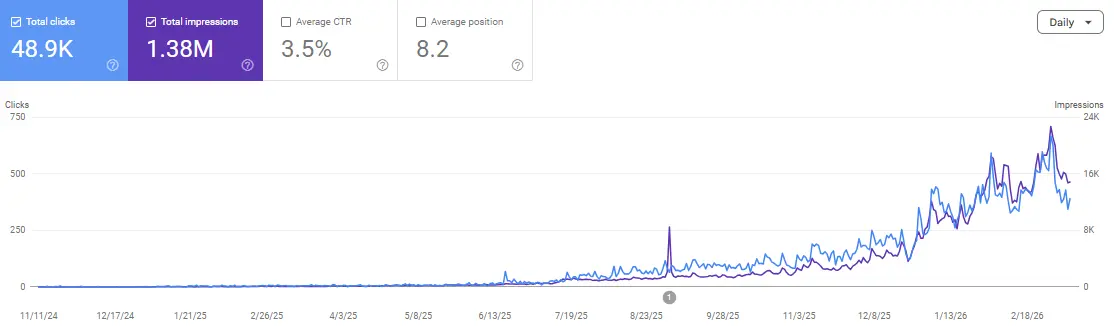
An annotation in Google Search Console (GSC) is a dated note on a performance chart. Google adds system annotations when there is an issue with the reporting data. You can add a custom annotation when something changes on your site, such as a title rewrite or a redirect fix. The note gives you a date to investigate; it doesn’t tell you what caused clicks to rise or fall.
Say you rewrote 12 product page titles on Monday. By Friday, clicks are up across the site. The most useful note you could have written on Monday was also the simplest: “Rewrote titles on 12 desk lamp pages; URL list in SEO-184.” Now someone who wasn’t in the meeting can check whether those 12 pages actually gained clicks.
System annotations and custom annotations answer different questions
A system annotation comes from Google Search Console. Open it to see whether Google describes a problem collecting or processing data and which dates or metrics it affects. For example, if a notice concerns impressions, check its wording before interpreting a dip in clicks as part of the same issue. Google’s record of Search Console data anomalies is a useful companion when a chart looks unusual.
A custom annotation comes from someone with access to your property. It might record the day a checkout error was fixed, a collection moved to a new URL, or a TV campaign started in one country. A teammate can also mark the start of a confirmed Google core update. That is still a team note: it doesn’t mean Google has diagnosed an impact on your site.
There’s a useful difference between “UK campaign launched” and “UK campaign increased branded searches.” You know the first on launch day. The second is a question for your next report.
How to add an annotation in Google Search Console
- Select the property you want to annotate. Open Performance → Search results and choose a date range that includes the event.
- Right-click the relevant date on the chart and choose Add annotation.
- Confirm the date in the picker. Enter your note in 120 characters or fewer, then click Add.
- Click the marker to read the saved note. Check that a colleague could identify both the change and the pages it touched.
Owners and full users can create and delete custom notes, including notes someone else added. Restricted users can read them. Google doesn’t currently offer an edit option: to correct a note, copy its text, delete it, then add the corrected version on the original date. Google’s annotation help page documents the controls and limits; the Search Central announcement shows what the feature looks like.
What belongs in a 120-character SEO note?
Write what went live + where + a reference if needed. Put the note on the release date, even if you first noticed a change in the chart a few days later. Keep your list of URLs and any test results in the release ticket or SEO content audit. The chart only needs enough detail for someone to find that record.
Here are four notes you can adapt:
- Content update:
Added sizing charts to 8 hiking boot pages; URL list in CONTENT-42. - Technical fix:
Restored redirects for 14 retired /chairs/ URLs; redirect map in WEB-73. - Campaign:
UK spring radio ads started; brand name and offer unchanged on site. - Partial rollout:
New navigation live on /desks/ only; /chairs/ stays on the previous menu.
The last example records something teams often forget: where the change didn’t happen. That gives the next analyst somewhere to look for an alternative explanation. If both categories lose impressions, a navigation change confined to one category is a weaker explanation for the whole decline.
Skip routine edits that nobody will need to investigate. Google allows up to 200 annotations per property and automatically deletes ones older than 500 days. Keep a separate release history if you’ll need it next year. Notes are visible to other property users, so a short ticket ID is better than a customer’s name, email address or order details.
How to investigate a traffic spike after an annotation
Start with the affected URLs. The marker stays visible when you filter the report by page, query, country or device. If you annotate a change to desk lamps and then filter for floor lamps, the note may still appear. Its presence on that chart doesn’t mean the floor lamp pages changed.
Here’s a hypothetical example, using the 12 rewritten titles from the opening. You want to know whether the new titles earned more clicks from roughly the same search visibility.
- Read the note before switching to a comparison. Open the release ticket and get the 12 URLs. Choose the same search type, device and market for both periods. For an international store, save the exact Search Console country filter you use.
- Compare like periods. For example, take two full weeks before the release and two full weeks afterward, excluding the rollout day. Match weekdays. Extend the window if the pages rarely receive clicks, or if Google hasn’t yet picked up the changes. Two weeks is an example, not a deadline for SEO results.
- Read clicks alongside impressions. Suppose those pages went from 400 clicks on 10,000 impressions to 480 clicks on 12,000 impressions. Clicks rose 20%, but click-through rate stayed at 4%. You can report more visits from search; those figures don’t support a claim that the titles persuaded a larger share of searchers to click.
- Find out what changed inside the total. Did one page gain most of the impressions? Did branded queries grow during a promotion? Use the GSC keyword research workflow to inspect queries for the affected pages. Check a similar group whose titles stayed the same. If that group also gained impressions, investigate demand before rolling the rewrite out across the catalog.
A defensible report would say: “The 12 edited pages earned 80 more clicks. Impressions also rose 20%, and CTR held at 4%. We’ll review the queries that gained visibility before changing more titles.” That gives an editor a decision they can act on. “Title rewrites boosted CTR” would send the same editor in the wrong direction.
What if a Google update and your release overlap?
Give each event its own note if you can verify its date. Record the release from your deployment history and the update from the Google Search Status Dashboard. If the release affected only a handful of pages, start there. If a decline also shows up on untouched pages, widen the investigation to search demand, technical issues and changes in the results themselves. Google’s traffic-drop troubleshooting guide explains how to distinguish several of these patterns.
For a real example of why the dates alone aren’t enough, Scale Xpert’s November core update analysis considers how seasonal promotions can change the mix of searches during a rollout. One retailer might gain branded clicks at the same time its buying guides lose visibility. A single sitewide line can hide both stories.
Common questions about GSC annotations
Why did my annotation disappear when I compared dates?
Search Console hides markers in comparison mode and in the 24-hour view. Switch to an ordinary date range that includes the event. If you’re preparing a before-and-after report, jot down the event date before turning comparison back on.
Can I attach a note to a single page or keyword?
Custom notes belong to a date on the property. A page or query filter doesn’t limit who sees the note or which filtered charts display it. Include the URL path, page group or query group in the text.
Can I add a note for a change that already happened?
Yes. Use the date picker to select the event date. If the ticket was closed Thursday but the redirect went live Tuesday, annotate Tuesday. If you can’t verify the release date, record what you can establish, such as “Redirect issue first observed.”
Can someone else change or remove my annotation?
Another owner or full user can remove it. There’s no in-place editing, even for the person who wrote it. Save the underlying release record somewhere with the history your team needs.
Will an annotation improve rankings or earn AI citations?
An annotation is a reporting note. It doesn’t update the page, request a crawl or submit your content for citation. Its value is helping you evaluate the work you did on the page.
What should I annotate first?
Choose the last release that someone will ask about at your next SEO review. Find its live date and affected URLs, then write one sentence a colleague can understand without you. That’s more useful than filling an empty chart with guesses about past traffic spikes.
If you’re deciding which changes deserve space in a monthly SEO report, you can compare notes with Paul Gautheron at Scale Xpert on LinkedIn.