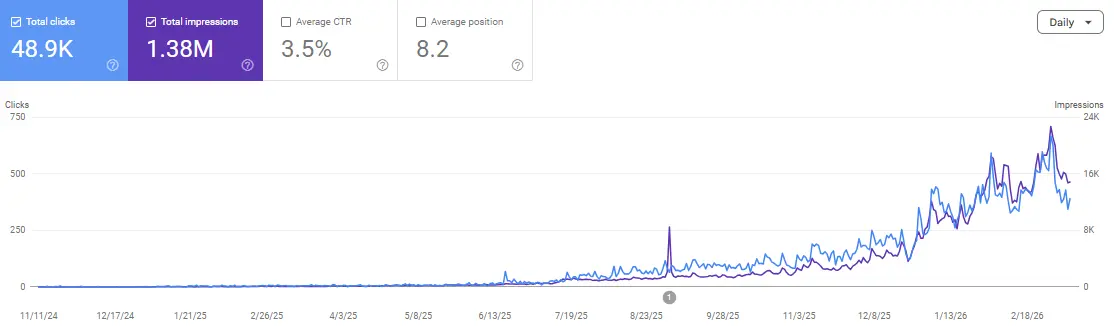
Your homepage appears on Google, Search Console has data, and your sitemap works. It is tempting to assume Bing has the same picture of your website. Check that assumption before building a visibility strategy around it.
To submit your website to Bing, add it to Bing Webmaster Tools, verify ownership, check your sitemap, and inspect important URLs. You can import an eligible verified Google Search Console property or verify the site manually.
The important distinction comes afterward: a verified account proves control of a website. It does not prove that Bing has indexed its pages or that Copilot will cite them.
This walkthrough covers setup and the first checks that make it useful. For the broader reporting and optimization workflow, Bing Webmaster Tools: What to Set Up, Fix, and Measure connects those checks to ongoing SEO decisions.
Before You Start, Identify the Website You Actually Want to Submit
Open your public homepage and note its final address after any redirects. Use that address as your starting point rather than a remembered version of the domain.
For example, a hypothetical business might use https://example.com/ while older documents still mention http://www.example.com/. Record the current public address so you can check that you are working with the intended site throughout setup.
Prepare access to at least one of these:
- The Google account associated with a verified Search Console property.
- Your website’s verification settings or homepage HTML.
- The hosting location where a verification file can be uploaded.
- The DNS management account for the domain.
You do not need every route. Choose the one your organization can maintain after setup, including when an employee or agency changes.
Also locate your actual sitemap URL. Get it from your CMS or existing configuration rather than assuming every site uses the same filename.
Choose Your Verification Route
Import is convenient when an appropriate Search Console property is already verified. Manual verification is useful when you prefer a separate ownership method or cannot use that Google account.
Choose based on access and continuity. If the person completing setup cannot maintain a verification file or DNS record, agree who will own that responsibility before proceeding.
Route A: Import From Google Search Console
Microsoft’s Search Console import instructions explain how Bing can import verified sites and their sitemaps.
- Sign in to Bing Webmaster Tools.
- Choose the Search Console import option.
- Sign in with the Google account holding the relevant verified property.
- Review and grant the requested access.
- Select the intended website and complete the import.
Check the resulting site selection before working on its reports. A business with several domains should not assume that the first property shown is the one it intended to configure.
Microsoft periodically rechecks imported ownership through the connected Search Console account. Revoked access can require reconnection or another verification method.
Treat this as an ownership and sitemap import, not as a transfer of Google’s rankings or performance history into Bing.
Route B: Verify the Website Manually
Add the site directly and use a verification method offered in your account. Microsoft’s site verification documentation describes the available approaches.
XML file: Download the verification file and upload it to the site’s root location as instructed. Confirm that its public address returns the supplied file.
Homepage meta tag: Place the exact supplied tag inside the homepage’s HTML head. A CMS or SEO plugin may provide a dedicated field; check whether it expects the full tag or only the verification value.
DNS verification: Create the record specified by the current verification screen. Copy its type, name, and value exactly. Follow the account’s instructions rather than converting a record into a different type based on an older tutorial.
Domain Connect: Where supported, the guided process connects to your DNS provider to configure verification. Microsoft’s Domain Connect explanation describes this route.
Complete the verification action in Bing after implementing your chosen method. Leave the required ownership mechanism in place unless you deliberately replace it.
If Verification Fails, Check the Evidence Before Switching Methods
Repeatedly choosing another method can leave several unfinished attempts without clarifying why the first one failed.
Start with the method you actually implemented.
The Meta Tag Is Saved but Cannot Be Found
Check the public homepage source rather than only the CMS settings screen.
Is the verification tag present in the head? Did the change reach the published site? Is an older cached version still being served? Did a theme change remove the setting?
If your plugin field expects only a verification value, pasting an entire HTML tag may produce the wrong output. Inspect the result instead of assuming a saved setting equals a working implementation.
The Verification File Opens the Homepage
Request the exact verification-file address. If it displays a normal page, redirects elsewhere, or requires a login, investigate the upload location and routing configuration.
A file on your computer or in the wrong hosting directory cannot establish what the public site serves. Ask your developer or host to confirm the requested path reaches the supplied file.
The DNS Record Appears in a Dashboard but Verification Still Fails
Confirm that you edited the DNS service actually authoritative for the domain. Your registrar, host, and DNS provider may be different organizations.
Then check the requested record name and value. Some DNS interfaces append the domain automatically, so review the resulting full name.
Allow for propagation and caching, but do not use waiting as a substitute for checking that the record was entered correctly.
The Import Does Not Show the Expected Site
Check the Google account and its access to the intended verified property. An agency login may contain different properties from the business owner’s account.
If the appropriate property remains unavailable, use a supported manual method rather than importing a different site and treating setup as complete.
Check Your Sitemap After Verification
Open Sitemaps for the selected website. Look for an existing submitted, discovered, or imported sitemap before adding another entry.
Microsoft’s Sitemaps documentation explains that the report shows processing status, dates, and discovered URL counts, with further details for individual entries.
If the correct sitemap is missing:
- Open its public URL and confirm that it loads.
- Submit that URL through the Sitemaps interface.
- Revisit its processing result.
- Investigate any reported error or warning.
For a sitemap index, inspect relevant child sitemaps when checking the result. A top-level entry alone may not answer whether an important section is represented.
A processed sitemap records one stage of discovery. Evaluate indexing separately.
To keep this first check manageable, choose three representative URLs: your homepage, an important commercial page, and a useful article. Look for their intended public versions in the appropriate sitemap.
If the sitemap lists obsolete addresses, private pages, or redirected versions instead, record the issue for correction at its CMS or generation source.
Inspect Three URLs Instead of Assuming the Whole Site Is Ready
Open URL Inspection and check those same representative pages. Microsoft’s URL Inspection guidance explains the indexed-state information and separate Live URL checks.
For each page, record:
- The exact URL inspected.
- Its reported index status.
- Any reported crawl or HTTP response issue.
- The result of a live check when needed.
- The next action justified by that result.
A live test answers a different question from a stored index report: whether the page can be fetched now versus what Bing reports about its indexed state.
If the URL redirects, inspect the destination as well. The live inspection does not simply treat an entire redirect journey as one completed fetch.
This small sample is a setup check, not a complete technical audit. Expand it when the results reveal a repeated problem.
For example, if a hypothetical service page redirects but the homepage does not, investigate that page’s destination before declaring the whole domain inaccessible.
Use a Setup Acceptance Checklist
A useful handover should describe what was verified, rather than simply saying “Bing is done.”
Check these outcomes separately:
- Access confirmed: The intended business account can open the correct site.
- Ownership verified: The chosen method works and has a named maintainer.
- Sitemap checked: Its URL and processing result are recorded.
- Important pages sampled: The three selected URLs have individual inspection notes.
- Problems assigned: Each confirmed issue has an owner and next action.
- Baseline saved: The date and available report observations are documented.
Do not mark an unknown result as a pass. “Not yet checked” is useful information when someone else must continue the work.
This checklist also prevents a common reporting error: using a successful verification screenshot as evidence that all content is indexed.
Establish a Baseline Before Publishing More Content
Record your setup date, chosen verification method, sitemap address, and the pages you inspected. Note any recent migration, major template change, or known outage.
For performance reporting, save the selected date range and what data is actually available. An empty report at setup is an observation to revisit, not a diagnosis that every page has failed.
Set the next review around a decision. For example: did the corrected sitemap process, and what does inspection now show for the previously inaccessible service page?
Keep a broader content audit separate from initial verification. You need evidence about the affected pages before deciding to rewrite, merge, or remove them.
When Bing visits become identifiable in your website analytics, assess landing pages and useful actions alongside GA4 channel grouping. The setup itself is not a business outcome.
Add IndexNow for Future Changes
Once the basic checks are complete, see whether your CMS, hosting service, or SEO plugin already supports IndexNow.
The IndexNow FAQ recommends checking existing integration options before implementing it manually. Use it to notify participating search engines when content is added, updated, or deleted.
Give the integration a specific acceptance check: does publishing or changing an eligible page produce the intended notification? Avoid enabling overlapping systems without understanding what each submits.
An accepted notification does not establish that the URL has been crawled, indexed, or selected for a search result. Verify subsequent outcomes through the relevant reports.
Similarly, evidence of crawler access to sitemaps and RSS should not be presented as proof that an AI answer has cited your content.
What This Setup Means for Copilot and MSN
Bing Webmaster Tools gives you a practical starting point for investigating Bing visibility. It is worth configuring before making assumptions about how your content is discovered.
Keep the intended outcome specific. A page appearing in Bing, a Copilot citation, and a backlink from an MSN-hosted article require different evidence.
Adding your site does not automatically publish it on MSN or create a link from that platform. Nor should you report a verified website as a confirmed AI citation.
For this setup task, success means that ownership, sitemap processing, and sample page states have been checked and documented. Later work can address content relevance, distribution, and citation performance with that foundation in place.
Frequently Asked Questions
Is Bing Webmaster Tools free?
Yes. You can use Bing Webmaster Tools without purchasing Microsoft Advertising. Use the sign-in options offered on the official platform.
Do I need Google Search Console before submitting my website to Bing?
No. Import is one option. You can add the website directly and use an available manual ownership verification method.
Does importing a website copy Google’s rankings into Bing?
No. The import connects eligible verified sites and sitemaps. Check Bing’s own inspection and reporting tools for its observations about your pages.
Which manual verification method should I choose?
Choose a supported method you can implement accurately and maintain. A CMS verification field may suit a content editor, while a DNS method may suit the person managing the domain.
Does a successfully processed sitemap mean every page is indexed?
No. Check important URLs individually. Sitemap processing and the indexed state of a particular page are separate observations.
Will adding my website guarantee a Copilot citation or MSN backlink?
No. Registration provides access to site management and diagnostic tools. Citations and published backlinks must be checked separately.
Finish With a Useful Handover
A completed setup leaves a clear record: which site you verified, how ownership is maintained, which sitemap Bing processed, and what happened when you inspected important pages.
That record gives your next SEO decision a stronger starting point than another untested assumption about indexing.
If you want technical fixes, useful content, and authority-building work to become a consistent process, connect with Paul Gautheron on LinkedIn. Scale Xpert brings those activities into a monthly visibility workflow, with progress reviewed against meaningful website outcomes.